

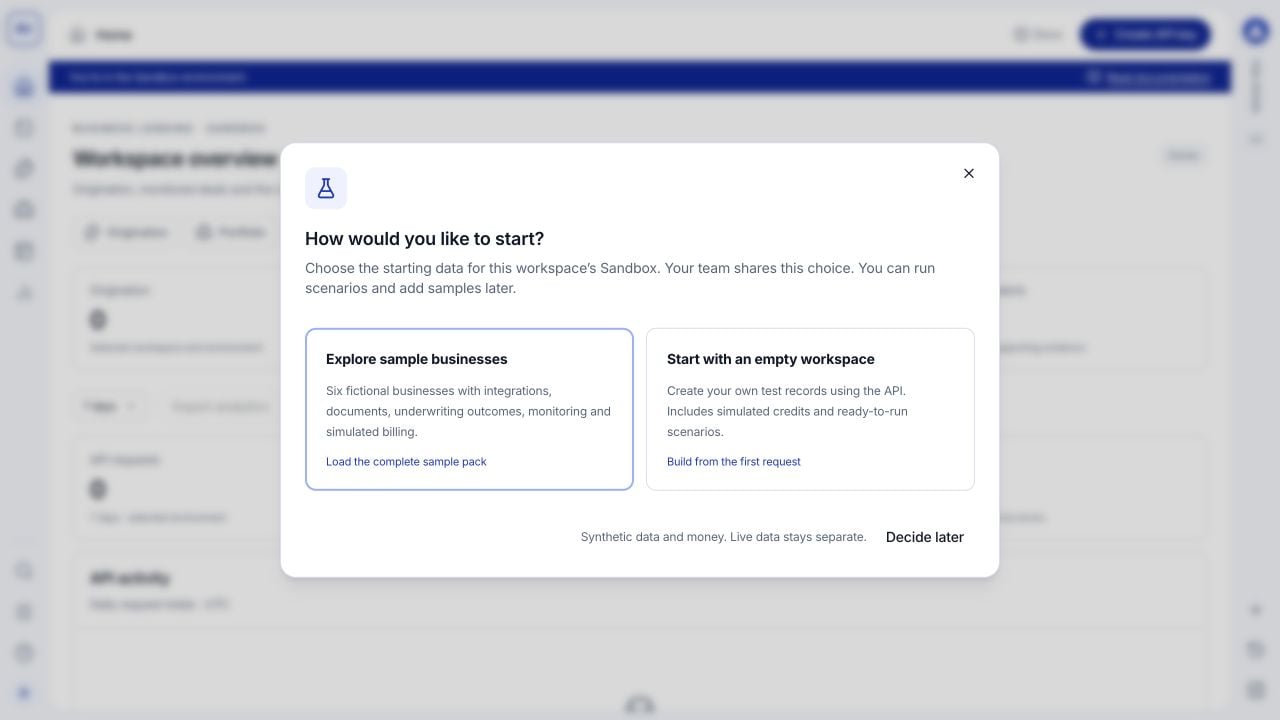
First-use setup: load six fictional businesses or start with your own test records. Both choices stay inside Sandbox.
Choose the right starting point
Empty means no sample business records, not no capabilities. You still have API tools, scenarios and CAD 5,000.00 in simulated starting credits. Choosing empty does not delete existing records. You can load sample businesses later.
Load and explore the sample pack
1
Choose Explore sample businesses
The setup modal starts preparing records for your selected Sandbox. Your teammates share the same setup choice.
2
Wait for your workspace to be ready
The progress modal cycles through preparation messages while businesses, use cases and records are created. It reaches completion only after preparation finishes and the records refresh. You then see Your workspace is ready, and the modal closes automatically.Refreshing the page can resume the progress view. If setup needs attention, use Open scenario tools to inspect the run; if the connection was interrupted, use Check again. Records already created are preserved.
3
Explore generated records
Open Origination to inspect applications and underwriting outcomes, or Portfolio for completed assessments with monitoring. Click a record to open its detail drawer and follow its associated documents and integrations.In Dev Tools, inspect Request logs, Deliveries & events, and Sandbox scenarios. In Billing, inspect the simulated balance, funding and consumption.
4
Run a scenario from your product
Open Dev Tools > Sandbox scenarios, select a category, scenario and business, and review the expected result. Use Run scenario or copy the request example into your server-side integration. Open Data Lookup for field types, payload examples and explanations.