

Four concepts to keep separate
Switch workspaces or environments
1
Open the workspace profile
Select the avatar or initials at the top of the left navigation. The menu shows your workspace, organization, role and selected environment.
2
Choose the workspace
Search the workspace list when necessary and select the workspace you need. If it belongs to another organization, switch organizations first.
3
Choose Sandbox or Live
Select the environment switch and check the banner after the view updates. Your API keys, records and financial activity must match the environment you intend to use.
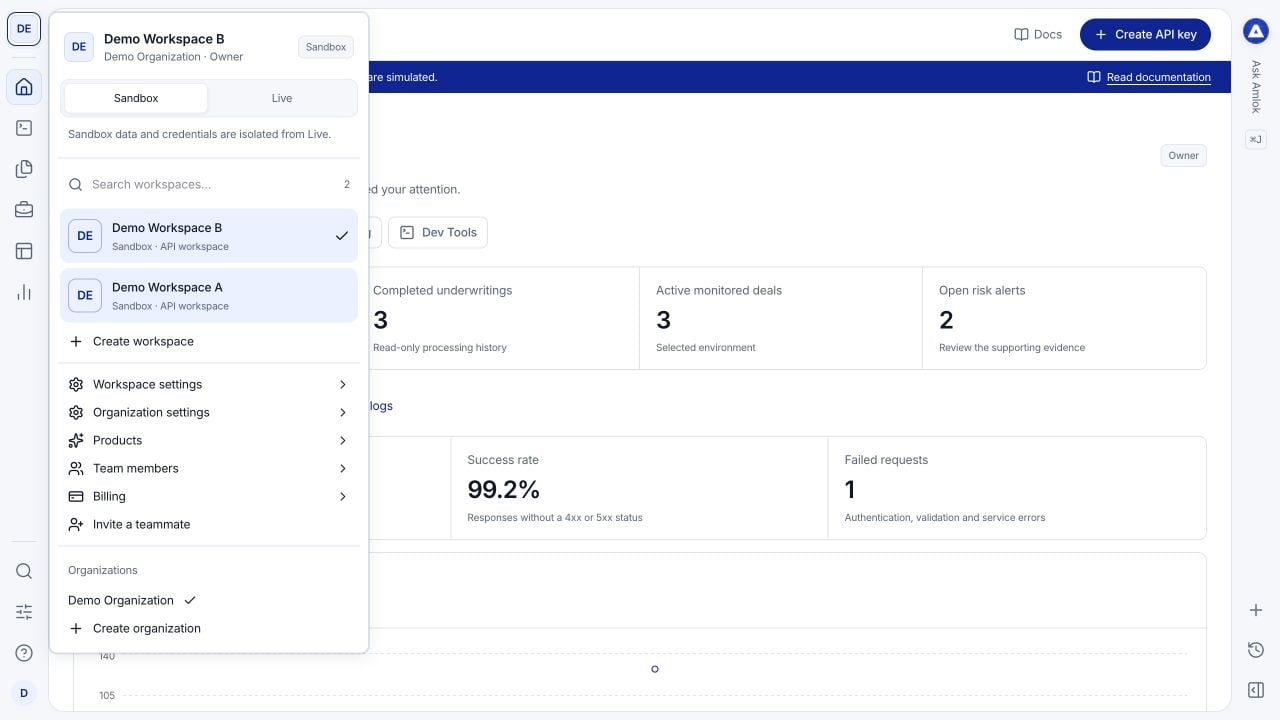
The workspace menu keeps workspace selection, environment and settings together.
Activate Live
New workspaces start with Sandbox access. Selecting Live before activation opens Activate your Live environment. Choose Contact support, or Keep using Sandbox to continue testing. Ask your Owner to coordinate activation with AMLOK.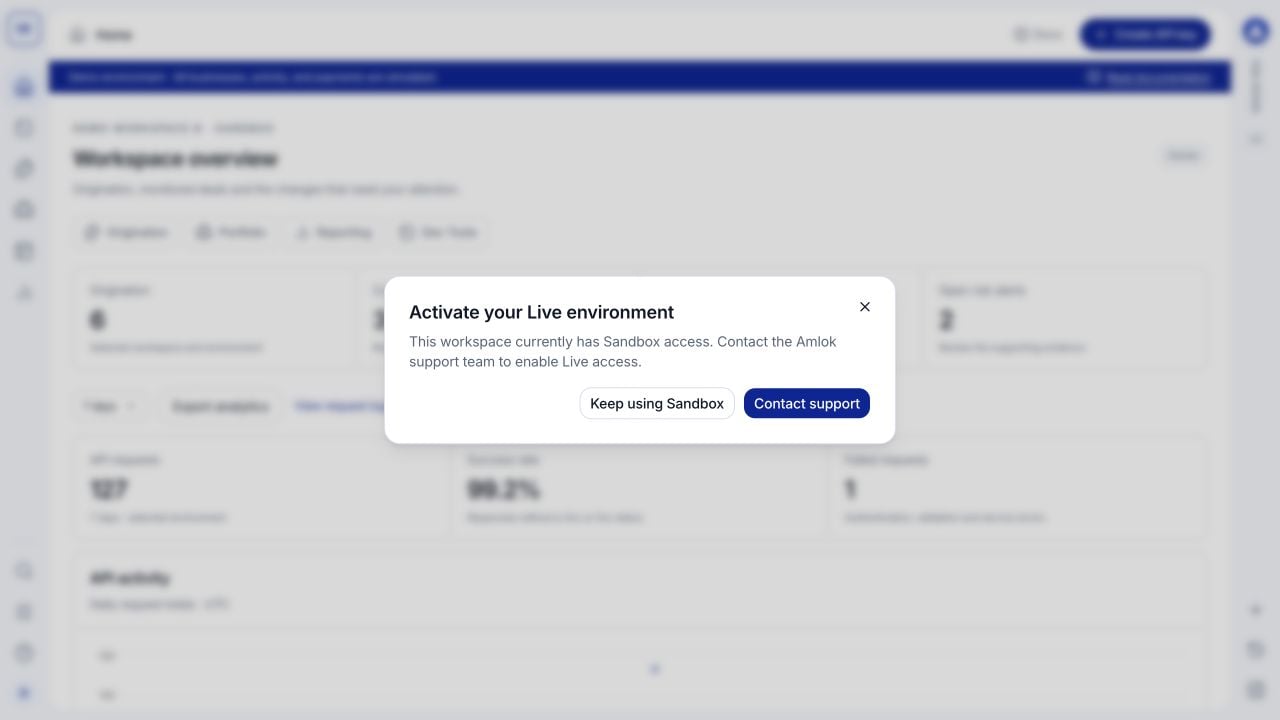
Live access is activated separately. Selecting the switch does not promote Sandbox data.