The console uses the same compact table and right-side drawer pattern across borrower activity, developer tools and settings. Learn these controls once and use them throughout the workspace.

Narrow a table

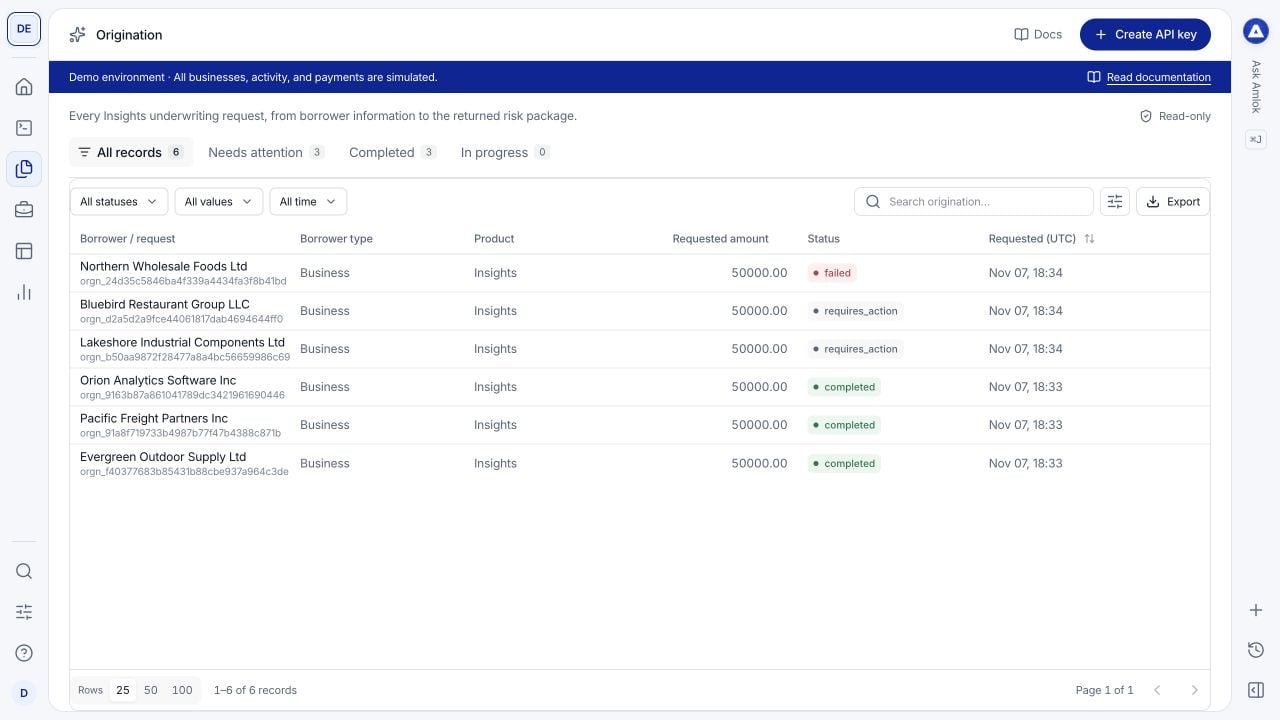
Origination table with six fictional businesses, status views, filters, search, column controls and pagination.

Origination uses the shared compact table: views above, filters and search beside the table, and pagination below.

The Export button downloads the matching table records as CSV. A table export serves the current console view. Use API exports when you need complete datasets beyond the records loaded in the console; do not use a screen count as proof that an enterprise extraction is complete.

Open and navigate a record

Select the record name or its row to open a drawer from the right. The table stays behind it, so you can keep your review context. The drawer uses up to 60% of a wide viewport and adapts to smaller screens.
  • Use Previous record and Next record to move through the current results.
  • Use the drawer tabs for the overview, payloads and related evidence available for that record type.
  • Expand an accordion to inspect an object, log or additional details.
  • Use Copy record ID for investigation and Copy record link to share with an authorized teammate.
  • Close with Close details, the close icon or Escape to return to the table.
An Actions menu contains the operations permitted for that collection and your role. Opening details is read-only. Editing configuration requires its own action and may ask you to confirm your identity.

Read values carefully

A dash or an absent field means that the view has no value to show; it is not proof of zero, no risk or a successful verification. Review the payload, coverage and source evidence before drawing a conclusion. Timestamps labeled UTC use UTC, even if your computer uses a different timezone. If a copied link does not open, check workspace access and environment before asking the sender to create another record.