Follow a simple first session: join the correct workspace, choose sample or empty Sandbox data, inspect a risk package and identify your next task.
Start in the AMLOK Console’s Sandbox so you can learn the workflow with fictional records and simulated credits. You can inspect a complete underwriting example before writing an API request.
Have your invitation email or the account you registered with AMLOK. Loading the complete sample pack requires an Owner. If you joined as a Developer or Analyst, your Owner can prepare the shared sample records for you.
1
Access your account
If you received an invitation, open its account setup link and follow the instructions. If you already have an account, sign in using the invited email. Otherwise, use Sign up at console.amlok.io and complete account verification and organization setup when prompted.See account access for the two paths.
2
Check your workspace and environment
Open the workspace profile at the top of the left navigation. Confirm the organization and workspace name, and select Sandbox. A workspace can contain both Sandbox and Live, but Live access requires activation.
3
Choose your starting data
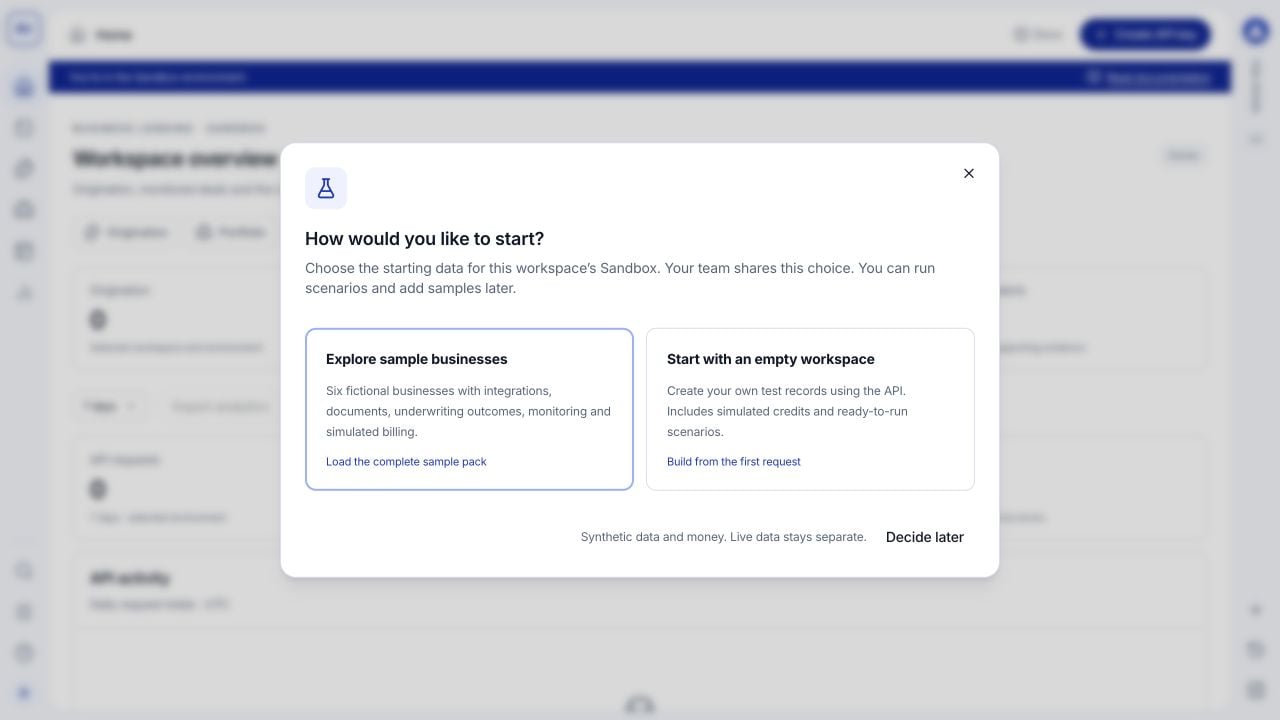
Select Explore sample businesses for a complete guided dataset, or Start with an empty workspace to create your own test records through the API. This is a shared workspace choice, not a separate choice for each teammate.Decide later dismisses the prompt for the current browser tab without completing setup. Until a choice is recorded, the prompt can appear again in a later session.
The first-use choice. Load fictional businesses to explore complete examples, or start with your own test submissions.
4
Wait for preparation to finish
If you choose samples, keep the preparation dialog open while it creates the businesses and related records. The progress messages continue until setup completes. Your workspace is ready confirms completion and the dialog closes.If the connection is interrupted, refresh and use Check again when offered. If setup needs attention, open the scenario tools to inspect its run. Do not repeatedly start fresh runs to recover an interrupted setup.
5
Open your first result
Open Origination, select Completed, and open a borrower row. In Overview, inspect the risk package. Review Documents and Integrations for supporting evidence. Owners and Developers can also inspect API request and API response. The Origination guide explains each tab. Close the drawer to return to the same table.A completed request can produce a within-policy, outside-policy or review-required result. Read the recommendation and evidence, not just the processing status.
6
Choose your next task
Risk teams can open Portfolio and review Notifications & flags for a monitored deal. Developers can open Dev Tools > Data Lookup, then run an example in Sandbox scenarios. Owners can invite teammates and review simulated billing.
You can identify your selected organization, workspace and environment.
You can open a record and distinguish its processing status from its underwriting recommendation.
You know whether you are using sample records or creating your own test data.
You know which Owner to contact for access or Live activation.
Sandbox never charges your card or debits a bank account. Its balance, funding and consumption demonstrate how financial records relate. See Sandbox setup and simulated billing for details.
{"docsConfig":{"theme":"mint","$schema":"https://mintlify.com/docs.json","name":"AMLOK","description":"AMLOK documentation, integration guides, data model, and API reference.","colors":{"primary":"#052698","light":"#2567FF","dark":"#1239B0"},"logo":{"light":"https://mintcdn.com/amlok-docs/vYb5LH-5AUaCJz-O/logo/amlok-logo-blue.svg?fit=max\u0026auto=format\u0026n=vYb5LH-5AUaCJz-O\u0026q=85\u0026s=e9395a8f9571d3a71fd68ecf40d9f0fb","dark":"https://mintcdn.com/amlok-docs/vYb5LH-5AUaCJz-O/logo/amlok-logo-white.svg?fit=max\u0026auto=format\u0026n=vYb5LH-5AUaCJz-O\u0026q=85\u0026s=20b048d8a03845d4a48a07c071b975f1","href":"/"},"favicon":{"light":"https://mintcdn.com/amlok-docs/SI95tT9C8WVAHz_k/logo/amlok-blue.svg?fit=max\u0026auto=format\u0026n=SI95tT9C8WVAHz_k\u0026q=85\u0026s=8a89367dc9c1c87d297fccd9bda086db","dark":"https://mintcdn.com/amlok-docs/SI95tT9C8WVAHz_k/logo/amlok-white.svg?fit=max\u0026auto=format\u0026n=SI95tT9C8WVAHz_k\u0026q=85\u0026s=097b549b0731621879cbf1f9fafbb9fd"},"api":{"playground":{"display":"simple"},"examples":{"languages":["bash","python","javascript"]}},"appearance":{"default":"light","strict":false},"background":{"color":{"light":"#FFFFFF"}},"navbar":{"primary":{"type":"button","label":"Get started","href":"/overview/introduction"}},"footer":{"socials":{"github":"https://github.com/amloktech"}},"fonts":{"heading":{"family":"Inter","weight":600},"body":{"family":"Inter"}},"icons":{"library":"lucide"},"contextual":{"options":["copy","view","chatgpt","claude","perplexity","mcp","cursor","vscode"],"display":"header"},"styling":{"latex":false},"navigation":{"pages":[]}},"deployment":{"deploymentMetadataValue":{"subdomain":"amlok-docs","hasAudioNarration":false,"actualSubdomain":"amlok-docs","customDomains":["docs.amlok.io"],"gitSource":{"type":"github","owner":"amloktech","repo":"docs","deployBranch":"main","contentDirectory":"","isPrivate":false,"mountPath":"","label":"","_id":"6adb662593b56c4f04af019c"},"entitlements":{},"buildId":"6aef7b4e608552e5c9517cfd","clientVersion":"0.0.4087","searchFilterCounts":[{"language":"default","tag":"Documentation","count":302},{"language":"default","tag":"Integrations","count":247},{"language":"default","tag":"API Reference","count":104},{"language":"default","tag":"Endpoints","count":65},{"language":"default","tag":"Accounting","count":51},{"language":"default","tag":"Ecommerce","count":51},{"language":"default","tag":"Inventory and ERP","count":51},{"language":"default","tag":"Payments and POS","count":51},{"language":"default","tag":"Research","count":44},{"language":"default","tag":"Lender Systems","count":26}]},"assistantConfig":{"enableAskAiButton":false,"enableStarterQuestions":false,"enableContextualStarterQuestions":false,"enableAskAiSearchBar":true},"basePath":"","hasChatPermissions":false,"hasWebMcpPermissions":false,"toggles":[],"googleFontsInlined":false},"customCss":[{"filePath":"custom.css","content":"#navbar .nav-logo{height:24px;width:auto}#amlok-docs-home{--amlok-ink: #101828;--amlok-muted: #536176;--amlok-blue: #052698;--amlok-border: #dce4f1;--amlok-surface: #ffffff;--amlok-art: #f2f6ff;--amlok-grid: rgba(5, 38, 152, .07);max-width:1040px;margin:0 auto;padding:24px 32px 40px;color:var(--amlok-ink)}.dark #amlok-docs-home{--amlok-ink: #f1f5ff;--amlok-muted: #acb9ce;--amlok-blue: #a8c2ff;--amlok-border: #283a56;--amlok-surface: #101b2c;--amlok-art: #122342;--amlok-grid: rgba(148, 180, 255, .08)}#amlok-docs-home .icon{background-color:currentColor}.amlok-home-hero{position:relative;overflow:hidden;isolation:isolate;padding:64px 80px 58px;margin-bottom:36px;text-align:center}.amlok-hero-grid{position:absolute;inset:0;z-index:-1;background-image:linear-gradient(var(--amlok-grid) 1px, transparent 1px), linear-gradient(90deg, var(--amlok-grid) 1px, transparent 1px);background-size:40px 40px;mask-image:radial-gradient(ellipse, #000 5%, transparent 72%)}.amlok-eyebrow{display:block;margin-bottom:20px;color:var(--amlok-blue);font:500 11px/1.5 ui-monospace, monospace;letter-spacing:.14em}#amlok-home-title{margin:0 0 22px;color:var(--amlok-ink);font-size:clamp(36px, 4vw, 52px);line-height:1.08;font-weight:600;letter-spacing:-.045em}.amlok-home-hero>p{max-width:540px;margin:0 auto;color:var(--amlok-muted);font-size:17px;line-height:1.65}.amlok-hero-symbol{position:absolute;z-index:-1;top:88px;color:var(--amlok-blue);opacity:.08}.amlok-hero-symbol-left{left:-10px;transform:rotate(-12deg)}.amlok-hero-symbol-right{right:-10px;transform:rotate(12deg)}.amlok-entry-grid{display:grid;grid-template-columns:repeat(2, minmax(0, 1fr));gap:24px}.amlok-entry-card{display:block;overflow:hidden;color:var(--amlok-ink);background:var(--amlok-surface);border:1px solid var(--amlok-border);text-decoration:none!important;transition:border-color .15s ease, box-shadow .15s ease}.amlok-entry-card:hover{border-color:var(--amlok-blue);box-shadow:0 6px 24px rgba(5, 38, 152, .06)}.amlok-entry-card:focus-visible{outline:2px solid #2567ff;outline-offset:5px}.amlok-card-art{position:relative;display:flex;align-items:center;justify-content:center;height:168px;overflow:hidden;color:var(--amlok-blue);border-bottom:1px solid var(--amlok-border);background-color:var(--amlok-art);background-image:linear-gradient(var(--amlok-grid) 1px, transparent 1px), linear-gradient(90deg, var(--amlok-grid) 1px, transparent 1px);background-size:24px 24px}.amlok-icon-plane{display:grid;place-items:center;width:112px;height:112px;border:1px solid var(--amlok-border);background:var(--amlok-surface);box-shadow:8px 8px 0 var(--amlok-grid)}.amlok-card-index{position:absolute;top:16px;left:18px;font:500 9px/1.5 ui-monospace, monospace;letter-spacing:.09em}.amlok-card-cross{position:absolute;bottom:12px;right:18px;font:400 20px/1 ui-monospace, monospace}.amlok-card-copy{padding:24px 26px 26px}.amlok-card-heading{display:flex;align-items:center;justify-content:space-between;gap:16px}.amlok-card-heading h2{margin:0;padding:0;color:var(--amlok-ink);font-size:21px;font-weight:600;line-height:1.35;letter-spacing:-.025em}.amlok-card-heading>span{display:flex;color:var(--amlok-blue)}.amlok-card-copy p{margin:12px 0 0;color:var(--amlok-muted);font-size:15px;line-height:1.65}.amlok-home-signoff{margin:32px 0 0;color:var(--amlok-muted);text-align:center;font-size:12px}@media (max-width: 640px){#amlok-docs-home{padding:8px 20px 32px}.amlok-home-hero{padding:40px 8px 36px;margin-bottom:20px}.amlok-home-hero>p{font-size:16px}.amlok-hero-symbol{display:none}.amlok-entry-grid{grid-template-columns:1fr;gap:20px}.amlok-card-art{height:150px}.amlok-card-copy{padding:20px}}@media (prefers-reduced-motion: reduce){.amlok-entry-card{transition:none}}.amlok-status{--status-ink: #172238;--status-muted: #56647a;--status-blue: #052698;--status-border: #dce4f1;--status-surface: #ffffff;--status-soft: #f5f8fe;--status-active: #146345;--status-active-bg: #eaf7ef;margin:28px 0 36px;color:var(--status-ink);font-size:14px;line-height:1.5}.dark .amlok-status{--status-ink: #edf3ff;--status-muted: #afbdd2;--status-blue: #a8c2ff;--status-border: #2a3c59;--status-surface: #101b2c;--status-soft: #15243c;--status-active: #8ee2b5;--status-active-bg: #16352c}.amlok-status button,.amlok-status input,.amlok-status select{font:inherit}.amlok-status button{cursor:pointer}.amlok-status button:focus-visible,.amlok-status input:focus-visible,.amlok-status select:focus-visible,.amlok-status a:focus-visible{outline:2px solid var(--status-blue);outline-offset:3px}.amlok-status-summary{display:grid;grid-template-columns:repeat(3, minmax(0, 1fr));gap:12px;margin-bottom:28px}.amlok-status .amlok-status-metric{display:flex;flex-direction:column;align-items:flex-start;gap:12px;padding:18px 20px;text-align:left;color:var(--status-muted);background:var(--status-surface);border:1px solid var(--status-border);border-radius:10px}.amlok-status .amlok-status-metric>span{display:flex;align-items:center;flex-wrap:wrap;gap:6px;font-size:12px;font-weight:500}.amlok-status .amlok-status-metric strong{color:var(--status-ink);font-size:28px;line-height:1;font-weight:600;letter-spacing:-.035em}.amlok-status .amlok-status-metric:hover,.amlok-status .amlok-status-metric[aria-pressed=\"true\"]{border-color:var(--status-blue);background:var(--status-soft)}.amlok-status-filters{display:grid;grid-template-columns:minmax(0, 2fr) minmax(140px, 1fr) minmax(140px, 1fr);gap:12px}.amlok-status label{display:block;margin-bottom:7px;color:var(--status-ink);font-size:12px;font-weight:500}.amlok-status-search-input{position:relative}.amlok-status-search-input>svg{position:absolute;left:12px;top:13px;color:var(--status-muted);pointer-events:none}.amlok-status input,.amlok-status select{display:block;width:100%;min-width:0;height:44px;color:var(--status-ink);background:var(--status-surface);border:1px solid var(--status-border);border-radius:7px}.amlok-status input{padding:9px 12px 9px 38px}.amlok-status input::placeholder{color:var(--status-muted);opacity:1}.amlok-status select{padding:9px 28px 9px 12px}.amlok-status-results{display:flex;align-items:center;justify-content:space-between;gap:12px;min-height:53px;color:var(--status-muted);font-size:12px}.amlok-status-results p{margin:0}.amlok-status .amlok-status-reset{padding:8px 0;color:var(--status-blue);font-size:12px;font-weight:500;background:transparent;border:0;text-decoration:underline;text-underline-offset:3px}.amlok-status-table-wrap{overflow:hidden;border:1px solid var(--status-border);border-radius:10px;background:var(--status-surface)}.amlok-status table{display:table;width:100%;margin:0;table-layout:fixed;border-collapse:collapse;font-size:13px;line-height:1.5}.amlok-status th,.amlok-status td{padding:17px 18px;text-align:left;vertical-align:middle;border-bottom:1px solid var(--status-border)}.amlok-status thead th{color:var(--status-muted);background:var(--status-soft);font-size:11px;font-weight:600;letter-spacing:.025em}.amlok-status thead th:first-child{width:49%}.amlok-status thead th:nth-child(2){width:23%}.amlok-status thead th:nth-child(3){width:28%}.amlok-status tbody th{font-weight:500}.amlok-status tbody tr:last-child>*{border-bottom:0}.amlok-status tbody tr:hover{background:var(--status-soft)}.amlok-status tbody a{display:inline;color:var(--status-ink);text-decoration:none;overflow-wrap:anywhere}.amlok-status tbody a:hover{color:var(--status-blue);text-decoration:underline;text-underline-offset:3px}.amlok-status tbody a svg{display:inline-block;margin-left:6px;vertical-align:-2px;color:var(--status-muted)}.amlok-status-category{display:block;margin-top:3px;color:var(--status-muted);font-size:11px;font-weight:400}.amlok-status-markets,.amlok-status-badges{display:flex;align-items:center;flex-wrap:wrap;gap:6px}.amlok-status-market{color:var(--status-muted);font-size:11px;padding:2px 6px;border:1px solid var(--status-border);border-radius:4px}.amlok-status-badge{display:inline-flex;align-items:center;gap:6px;padding:3px 8px;border-radius:5px;font-size:11px;font-weight:500;white-space:nowrap}.amlok-status-dot{width:5px;height:5px;border-radius:50%;background:currentColor}.amlok-status-active{color:var(--status-active);background:var(--status-active-bg)}.amlok-status-review{color:var(--status-muted);background:var(--status-soft);border:1px solid var(--status-border)}.amlok-status-roadmap{color:var(--status-blue);background:var(--status-soft)}.amlok-status-progress{color:#805b00;background:#fff5d4}.dark .amlok-status-progress{color:#f4cf7d;background:#3a3018}.amlok-status-beta{display:inline-block;color:var(--status-blue);padding:1px 5px;border:1px solid var(--status-border);border-radius:4px;font-size:10px;line-height:1.5;font-weight:500}.amlok-status .amlok-status-empty{padding:48px 20px;text-align:center}.amlok-status-empty strong,.amlok-status-empty>span{display:block}.amlok-status-empty>span{margin:8px 0;color:var(--status-muted)}.amlok-status-pagination{display:flex;align-items:center;justify-content:space-between;gap:12px;margin-top:16px;color:var(--status-muted);font-size:12px}.amlok-status-pagination>div{display:flex;gap:8px}.amlok-status-pagination button{min-height:36px;padding:7px 13px;color:var(--status-ink);background:var(--status-surface);border:1px solid var(--status-border);border-radius:6px}.amlok-status-pagination button:hover:not(:disabled){border-color:var(--status-blue)}.amlok-status-pagination button:disabled{opacity:.45;cursor:default}.amlok-status-sr-only{position:absolute;width:1px;height:1px;padding:0;margin:-1px;overflow:hidden;clip:rect(0, 0, 0, 0);white-space:nowrap;border:0}@media (max-width: 640px){.amlok-status-summary{gap:8px;margin-bottom:22px}.amlok-status .amlok-status-metric{gap:10px;padding:13px 10px}.amlok-status .amlok-status-metric>span{min-height:36px;align-content:center;font-size:11px}.amlok-status .amlok-status-metric strong{font-size:25px}.amlok-status-filters{grid-template-columns:repeat(2, minmax(0, 1fr))}.amlok-status-search{grid-column:1 / -1}.amlok-status th,.amlok-status td{padding:13px 9px}.amlok-status thead th:first-child{width:43%}.amlok-status thead th:nth-child(2){width:25%}.amlok-status thead th:nth-child(3){width:32%}.amlok-status table{font-size:12px}.amlok-status-badge{padding:3px 6px;gap:4px;font-size:10px}}"},{"filePath":"pricing-calculator.css","content":".amlok-pricing-calc{--apc-text: #17233b;--apc-muted: #57657b;--apc-border: #dce4f1;--apc-surface: #fff;--apc-tint: #f4f7ff;--apc-blue: #052698;--apc-error: #b42318;margin:24px 0 36px;color:var(--apc-text);font-size:14px;line-height:1.5}.dark .amlok-pricing-calc{--apc-text: #edf3ff;--apc-muted: #aebbd0;--apc-border: #30405a;--apc-surface: #111c2d;--apc-tint: #162643;--apc-blue: #aac6ff;--apc-error: #ffaca4}.amlok-pricing-calc *{box-sizing:border-box}.amlok-pricing-calc .apc-toolbar{display:flex;align-items:center;justify-content:space-between;gap:16px;margin-bottom:16px}.amlok-pricing-calc .apc-badge{color:var(--apc-muted);font-size:12px;font-weight:600}.amlok-pricing-calc .apc-reset{padding:8px 12px;border:1px solid var(--apc-border);border-radius:8px;color:var(--apc-blue);background:var(--apc-surface);cursor:pointer;font:inherit;font-size:13px}.amlok-pricing-calc .apc-volume-help{margin:0 0 20px;color:var(--apc-muted);font-size:12px}.amlok-pricing-calc .apc-layout{display:grid;grid-template-columns:minmax(0, 1.2fr) minmax(270px, 1fr);gap:24px;align-items:start}.amlok-pricing-calc .apc-inputs{display:grid;gap:16px;min-width:0}.amlok-pricing-calc .apc-panel{border:1px solid var(--apc-border);border-radius:14px;background:var(--apc-surface);overflow:hidden}.amlok-pricing-calc .apc-product-header{padding:18px 20px 14px;border-bottom:1px solid var(--apc-border)}.amlok-pricing-calc .apc-product-toggle{display:flex;align-items:center;gap:10px;font-size:17px;font-weight:650;cursor:pointer}.amlok-pricing-calc input[type=\"checkbox\"]{width:18px;height:18px;accent-color:#052698;flex-shrink:0}.dark .amlok-pricing-calc input[type=\"checkbox\"]{accent-color:#8eafff}.amlok-pricing-calc .apc-product-header p{margin:6px 0 0 28px;color:var(--apc-muted);font-size:12px}.amlok-pricing-calc .apc-tiers{border:0;margin:0;padding:2px 20px;min-width:0}.amlok-pricing-calc .apc-tiers:disabled{opacity:.45}.amlok-pricing-calc .apc-tier{display:grid;grid-template-columns:minmax(0, 1fr) 105px;gap:4px 12px;align-items:center;padding:12px 0}.amlok-pricing-calc .apc-tier+.apc-tier{border-top:1px solid var(--apc-border)}.amlok-pricing-calc .apc-tier label{display:grid;gap:2px}.amlok-pricing-calc .apc-tier label strong{font-weight:600}.amlok-pricing-calc .apc-tier label span{color:var(--apc-muted);font-size:12px}.amlok-pricing-calc .apc-slider-control{grid-column:1 / -1;padding-top:6px;container-type:inline-size}.amlok-pricing-calc input[type=\"range\"]{display:block;appearance:none;-webkit-appearance:none;width:100%;height:28px;margin:0;background:transparent;cursor:pointer}.amlok-pricing-calc input[type=\"range\"]::-webkit-slider-runnable-track{height:6px;border-radius:999px;background:linear-gradient(to right, var(--apc-blue) var(--apc-slider-progress), var(--apc-border) var(--apc-slider-progress))}.amlok-pricing-calc input[type=\"range\"]::-webkit-slider-thumb{appearance:none;-webkit-appearance:none;width:20px;height:20px;margin-top:-7px;border:3px solid var(--apc-surface);border-radius:50%;background:var(--apc-blue);box-shadow:0 0 0 1px var(--apc-blue)}.amlok-pricing-calc input[type=\"range\"]::-moz-range-track{height:6px;border-radius:999px;background:linear-gradient(to right, var(--apc-blue) var(--apc-slider-progress), var(--apc-border) var(--apc-slider-progress))}.amlok-pricing-calc input[type=\"range\"]::-moz-range-thumb{width:14px;height:14px;border:3px solid var(--apc-surface);border-radius:50%;background:var(--apc-blue);box-shadow:0 0 0 1px var(--apc-blue)}.amlok-pricing-calc input[type=\"range\"]:disabled{cursor:not-allowed}.amlok-pricing-calc .apc-slider-labels{position:relative;height:20px;margin:0 10px;color:var(--apc-muted);font-size:clamp(8px, 3.3cqi, 10px);line-height:16px;font-variant-numeric:tabular-nums}.amlok-pricing-calc .apc-slider-labels span{position:absolute;top:0;transform:translateX(-50%);white-space:nowrap}.amlok-pricing-calc input[type=\"number\"]{display:block;width:100%;min-width:0;border:1px solid var(--apc-border);border-radius:8px;padding:9px 10px;color:var(--apc-text);background:var(--apc-surface);font:inherit;font-variant-numeric:tabular-nums}.amlok-pricing-calc input[aria-invalid=\"true\"]{border-color:var(--apc-error)}.amlok-pricing-calc :is(input,button):focus-visible{outline:2px solid #2567ff;outline-offset:3px}.amlok-pricing-calc .apc-error{color:var(--apc-error);font-size:12px;margin:4px 0 0;grid-column:1 / -1}.amlok-pricing-calc .apc-error:empty{display:none}.amlok-pricing-calc .apc-terms{padding:20px}.amlok-pricing-calc .apc-terms h2,.amlok-pricing-calc .apc-summary h2{margin:0 0 16px;font-size:17px;font-weight:650;line-height:1.4}.amlok-pricing-calc .apc-terms-grid{display:grid;gap:18px}.amlok-pricing-calc .apc-terms-grid label{display:block;margin-bottom:6px;font-weight:600}.amlok-pricing-calc .apc-terms-grid p{margin:6px 0 0;font-size:12px;color:var(--apc-muted)}.amlok-pricing-calc .apc-terms-grid .apc-error{color:var(--apc-error)}.amlok-pricing-calc .apc-summary{position:sticky;top:120px;border:1px solid var(--apc-border);border-radius:14px;padding:24px;background:var(--apc-tint);min-width:0}.amlok-pricing-calc .apc-hero-amount{display:grid;gap:5px}.amlok-pricing-calc .apc-hero-amount span{font-size:12px;color:var(--apc-muted)}.amlok-pricing-calc .apc-hero-amount strong{font-size:clamp(24px, 2.3vw, 32px);font-weight:650;letter-spacing:-.035em;color:var(--apc-blue);overflow-wrap:anywhere;font-variant-numeric:tabular-nums}.amlok-pricing-calc .apc-breakdown{display:grid;gap:12px;margin:22px 0}.amlok-pricing-calc .apc-breakdown>div{display:flex;flex-wrap:wrap;justify-content:space-between;gap:3px 12px}.amlok-pricing-calc .apc-breakdown dt{color:var(--apc-muted);font-size:12px}.amlok-pricing-calc .apc-breakdown dd{margin:0;font-size:13px;font-weight:600;font-variant-numeric:tabular-nums}.amlok-pricing-calc .apc-total-row{padding-top:12px;border-top:1px solid var(--apc-border)}.amlok-pricing-calc .apc-total-row dt{color:var(--apc-text);font-weight:600}.amlok-pricing-calc .apc-payment{padding:16px;border:1px solid var(--apc-border);border-radius:10px;background:var(--apc-surface)}.amlok-pricing-calc .apc-payment span{display:block;font-weight:600;font-size:12px}.amlok-pricing-calc .apc-payment strong{display:block;margin-top:4px;font-size:23px;letter-spacing:-.02em;overflow-wrap:anywhere}.amlok-pricing-calc .apc-payment p,.amlok-pricing-calc .apc-footnote,.amlok-pricing-calc .apc-explanation{margin:8px 0 0;color:var(--apc-muted);font-size:12px}.amlok-pricing-calc .apc-footnote{margin-top:16px}.amlok-pricing-calc .apc-invalid-summary{color:var(--apc-muted)}.amlok-pricing-calc .apc-sr-only{position:absolute;width:1px;height:1px;padding:0;margin:-1px;overflow:hidden;clip:rect(0,0,0,0);white-space:nowrap;border:0}@media (max-width: 760px){.amlok-pricing-calc .apc-layout{grid-template-columns:minmax(0, 1fr);gap:20px}.amlok-pricing-calc .apc-summary{position:static;padding:20px}}@media (prefers-reduced-motion: reduce){.amlok-pricing-calc *{scroll-behavior:auto}}.amlok-pricing-calc .apc-tier .apc-tier-toggle{display:flex;align-items:center;gap:8px;cursor:pointer}.amlok-pricing-calc .apc-tier-heading>span{display:block;margin-left:26px;font-size:12px;color:var(--apc-muted)}.amlok-pricing-calc .apc-tier input:disabled{opacity:.45}"},{"filePath":"brand-guidelines.css","href":"/_mintlify/custom/amlok-docs/f84d35997dc566c5/brand-guidelines.css"}],"page":{"pagePath":"console/quickstart","slug":"/console/quickstart","pageMetadata":{"title":"Get started in the Console","sidebarTitle":"First steps","description":"Follow a simple first session: join the correct workspace, choose sample or empty Sandbox data, inspect a risk package and identify your next task.","keywords":["console onboarding","first login","workspace setup","sample businesses"],"href":"/console/quickstart"},"description":{"compiledSource":"\"use strict\";\nconst {jsx: _jsx} = arguments[0];\nconst {useMDXComponents: _provideComponents} = arguments[0];\nfunction _createMdxContent(props) {\n const _components = {\n p: \"p\",\n ..._provideComponents(),\n ...props.components\n };\n return _jsx(_components.p, {\n children: \"Follow a simple first session: join the correct workspace, choose sample or empty Sandbox data, inspect a risk package and identify your next task.\"\n });\n}\nfunction MDXContent(props = {}) {\n const {wrapper: MDXLayout} = {\n ..._provideComponents(),\n ...props.components\n };\n return MDXLayout ? _jsx(MDXLayout, {\n ...props,\n children: _jsx(_createMdxContent, {\n ...props\n })\n }) : _createMdxContent(props);\n}\nreturn {\n default: MDXContent\n};\n","frontmatter":{},"scope":{}},"pageType":"default","mdx":{"mdxSource":{"compiledSource":"\"use strict\";const{Fragment:_Fragment,jsx:_jsx,jsxs:_jsxs}=arguments[0];const{useMDXComponents:_provideComponents}=arguments[0];function _createMdxContent(props){const _components={a:`a`,li:`li`,p:`p`,strong:`strong`,ul:`ul`,..._provideComponents(),...props.components},{Frame,Heading,OptimizedImage,Step,Steps}=_components;if(!Frame)_missingMdxReference(`Frame`,true);if(!Heading)_missingMdxReference(`Heading`,true);if(!OptimizedImage)_missingMdxReference(`OptimizedImage`,true);if(!Step)_missingMdxReference(`Step`,true);if(!Steps)_missingMdxReference(`Steps`,true);return _jsxs(_Fragment,{children:[_jsx(_components.p,{children:`Start in the AMLOK Console’s Sandbox so you can learn the workflow with fictional records and simulated credits. You can inspect a complete underwriting example before writing an API request.`}),`\n`,_jsx(Heading,{level:`2`,id:`before-you-start`,children:`Before you start`}),`\n`,_jsxs(_components.p,{children:[`Have your invitation email or the account you registered with AMLOK. Loading the complete sample pack requires an `,_jsx(_components.strong,{children:`Owner`}),`. If you joined as a Developer or Analyst, your Owner can prepare the shared sample records for you.`]}),`\n`,_jsxs(Steps,{children:[_jsxs(Step,{title:`Access your account`,children:[_jsxs(_components.p,{children:[`If you received an invitation, open its account setup link and follow the instructions. If you already have an account, sign in using the invited email. Otherwise, use `,_jsx(_components.strong,{children:`Sign up`}),` at `,_jsx(_components.a,{href:`https://console.amlok.io/`,children:`console.amlok.io`}),` and complete account verification and organization setup when prompted.`]}),_jsxs(_components.p,{children:[`See `,_jsx(_components.a,{href:`/console/account-access`,children:`account access`}),` for the two paths.`]})]}),_jsx(Step,{title:`Check your workspace and environment`,children:_jsxs(_components.p,{children:[`Open the workspace profile at the top of the left navigation. Confirm the organization and workspace name, and select `,_jsx(_components.strong,{children:`Sandbox`}),`. A workspace can contain both Sandbox and Live, but Live access requires activation.`]})}),_jsxs(Step,{title:`Choose your starting data`,children:[_jsxs(_components.p,{children:[`Select `,_jsx(_components.strong,{children:`Explore sample businesses`}),` for a complete guided dataset, or `,_jsx(_components.strong,{children:`Start with an empty workspace`}),` to create your own test records through the API. This is a shared workspace choice, not a separate choice for each teammate.`]}),_jsxs(_components.p,{children:[_jsx(_components.strong,{children:`Decide later`}),` dismisses the prompt for the current browser tab without completing setup. Until a choice is recorded, the prompt can appear again in a later session.`]}),_jsx(Frame,{caption:`The first-use choice. Load fictional businesses to explore complete examples, or start with your own test submissions.`,children:_jsx(OptimizedImage,{src:`https://mintcdn.com/amlok-docs/hvMKJK3yIlIarAQ3/images/sandbox/choose-starting-data.png?fit=max\u0026auto=format\u0026n=hvMKJK3yIlIarAQ3\u0026q=85\u0026s=b2499318850b0c683ba20402588e066b`,alt:`Sandbox setup dialog offering Explore sample businesses, Start with an empty workspace and Decide later.`,\"data-og-width\":`1280`,width:`1280`,\"data-og-height\":`720`,height:`720`,\"data-path\":`images/sandbox/choose-starting-data.png`,\"data-optimize\":`true`,\"data-opv\":`3`,srcset:`https://mintcdn.com/amlok-docs/hvMKJK3yIlIarAQ3/images/sandbox/choose-starting-data.png?w=280\u0026fit=max\u0026auto=format\u0026n=hvMKJK3yIlIarAQ3\u0026q=85\u0026s=c79efbff69d49be91bc50da54e6871e2 280w, https://mintcdn.com/amlok-docs/hvMKJK3yIlIarAQ3/images/sandbox/choose-starting-data.png?w=560\u0026fit=max\u0026auto=format\u0026n=hvMKJK3yIlIarAQ3\u0026q=85\u0026s=32aaf4a951281c4f6973ab718a1bca0f 560w, https://mintcdn.com/amlok-docs/hvMKJK3yIlIarAQ3/images/sandbox/choose-starting-data.png?w=840\u0026fit=max\u0026auto=format\u0026n=hvMKJK3yIlIarAQ3\u0026q=85\u0026s=4f37bb3ae763032a2c40ea1f669e61f7 840w, https://mintcdn.com/amlok-docs/hvMKJK3yIlIarAQ3/images/sandbox/choose-starting-data.png?w=1100\u0026fit=max\u0026auto=format\u0026n=hvMKJK3yIlIarAQ3\u0026q=85\u0026s=a9b14381dbaaeb7961c588513648faa8 1100w, https://mintcdn.com/amlok-docs/hvMKJK3yIlIarAQ3/images/sandbox/choose-starting-data.png?w=1650\u0026fit=max\u0026auto=format\u0026n=hvMKJK3yIlIarAQ3\u0026q=85\u0026s=e3fcfb203e12cb3019dd2e6366512f70 1650w, https://mintcdn.com/amlok-docs/hvMKJK3yIlIarAQ3/images/sandbox/choose-starting-data.png?w=2500\u0026fit=max\u0026auto=format\u0026n=hvMKJK3yIlIarAQ3\u0026q=85\u0026s=424e1718b6dfe5f68766227d2fb90c48 2500w`})})]}),_jsxs(Step,{title:`Wait for preparation to finish`,children:[_jsxs(_components.p,{children:[`If you choose samples, keep the preparation dialog open while it creates the businesses and related records. The progress messages continue until setup completes. `,_jsx(_components.strong,{children:`Your workspace is ready`}),` confirms completion and the dialog closes.`]}),_jsxs(_components.p,{children:[`If the connection is interrupted, refresh and use `,_jsx(_components.strong,{children:`Check again`}),` when offered. If setup needs attention, open the scenario tools to inspect its run. Do not repeatedly start fresh runs to recover an interrupted setup.`]})]}),_jsxs(Step,{title:`Open your first result`,children:[_jsxs(_components.p,{children:[`Open `,_jsx(_components.strong,{children:`Origination`}),`, select `,_jsx(_components.strong,{children:`Completed`}),`, and open a borrower row. In `,_jsx(_components.strong,{children:`Overview`}),`, inspect the risk package. Review `,_jsx(_components.strong,{children:`Documents`}),` and `,_jsx(_components.strong,{children:`Integrations`}),` for supporting evidence. Owners and Developers can also inspect `,_jsx(_components.strong,{children:`API request`}),` and `,_jsx(_components.strong,{children:`API response`}),`. The `,_jsx(_components.a,{href:`/console/origination`,children:`Origination guide`}),` explains each tab. Close the drawer to return to the same table.`]}),_jsx(_components.p,{children:`A completed request can produce a within-policy, outside-policy or review-required result. Read the recommendation and evidence, not just the processing status.`})]}),_jsx(Step,{title:`Choose your next task`,children:_jsxs(_components.p,{children:[`Risk teams can open `,_jsx(_components.strong,{children:`Portfolio`}),` and review `,_jsx(_components.strong,{children:`Notifications \u0026 flags`}),` for a monitored deal. Developers can open `,_jsx(_components.strong,{children:`Dev Tools > Data Lookup`}),`, then run an example in `,_jsx(_components.strong,{children:`Sandbox scenarios`}),`. Owners can invite teammates and review simulated billing.`]})})]}),`\n`,_jsx(Heading,{level:`2`,id:`you-are-ready-to-continue-when`,children:`You are ready to continue when`}),`\n`,_jsxs(_components.ul,{children:[`\n`,_jsx(_components.li,{children:`You can identify your selected organization, workspace and environment.`}),`\n`,_jsx(_components.li,{children:`You can open a record and distinguish its processing status from its underwriting recommendation.`}),`\n`,_jsx(_components.li,{children:`You know whether you are using sample records or creating your own test data.`}),`\n`,_jsx(_components.li,{children:`You know which Owner to contact for access or Live activation.`}),`\n`]}),`\n`,_jsxs(_components.p,{children:[`Sandbox never charges your card or debits a bank account. Its balance, funding and consumption demonstrate how financial records relate. See `,_jsx(_components.a,{href:`/sandbox/getting-started`,children:`Sandbox setup`}),` and `,_jsx(_components.a,{href:`/sandbox/simulated-billing`,children:`simulated billing`}),` for details.`]})]})}function MDXContent(props={}){const{wrapper:MDXLayout}={..._provideComponents(),...props.components};return MDXLayout?_jsx(MDXLayout,{...props,children:_jsx(_createMdxContent,{...props})}):_createMdxContent(props)}return{default:MDXContent};function _missingMdxReference(id,component){throw new Error(`Expected `+(component?`component`:`object`)+\" `\"+id+\"` to be defined: you likely forgot to import, pass, or provide it.\")}","frontmatter":{},"scope":{"config":{},"pageMetadata":{"title":"Get started in the Console","sidebarTitle":"First steps","description":"Follow a simple first session: join the correct workspace, choose sample or empty Sandbox data, inspect a risk package and identify your next task.","keywords":["console onboarding","first login","workspace setup","sample businesses"],"href":"/console/quickstart"}}},"mdxSourceWithNoJs":null},"mdxExtracts":{"tableOfContents":[{"title":"Before you start","slug":"before-you-start","depth":2,"children":[]},{"title":"You are ready to continue when","slug":"you-are-ready-to-continue-when","depth":2,"children":[]}],"codeExamples":{}},"jsLinks":["/_mintlify/custom/amlok-docs/3336037d05644c09/downloads/hub-embed.js"],"subdomain":"amlok-docs","siteName":"AMLOK","title":"Get started in the Console - AMLOK","navMaps":{"firstHrefInVersion":{},"firstHrefInLanguage":{}},"lastModified":"2026-11-07T19:26:30.114Z","originalFileLocation":"console/quickstart.mdx"},"headHtml":"\u003cscript data-mint-head>(function(){var d=document.documentElement,p=null;if(!p){try{p=localStorage.getItem(\"isDarkMode\")}catch(e){}if(p==='true')p='dark';else if(p==='false')p='light';if(p!=='light'\u0026\u0026p!=='dark'\u0026\u0026p!=='system')p=\"light\"}var r=p==='system'?(matchMedia(\"(prefers-color-scheme: dark)\").matches?'dark':'light'):p;d.classList.remove(r==='dark'?'light':'dark');d.classList.add(r);d.setAttribute(\"data-theme-preference\",p)})();\u003c/script>\u003cmeta data-mint-head name=\"description\" content=\"Follow a simple first session: join the correct workspace, choose sample or empty Sandbox data, inspect a risk package and identify your next task.\">\u003cmeta data-mint-head name=\"application-name\" content=\"AMLOK\">\u003cmeta data-mint-head name=\"generator\" content=\"Mintlify\">\u003clink data-mint-head rel=\"icon\" type=\"image/png\" sizes=\"192x192\" href=\"/mintlify-assets/_mintlify/favicons/amlok-docs/j-WOjPp62X_FVp2S/_generated/favicon/android-chrome-192x192.png\" media=\"(prefers-color-scheme: light)\">\u003clink data-mint-head rel=\"apple-touch-icon\" type=\"image/png\" sizes=\"180x180\" href=\"/mintlify-assets/_mintlify/favicons/amlok-docs/j-WOjPp62X_FVp2S/_generated/favicon/apple-touch-icon.png\">\u003clink data-mint-head rel=\"icon\" type=\"image/png\" sizes=\"16x16\" href=\"/mintlify-assets/_mintlify/favicons/amlok-docs/j-WOjPp62X_FVp2S/_generated/favicon/favicon-16x16.png\" media=\"(prefers-color-scheme: light)\">\u003clink data-mint-head rel=\"icon\" type=\"image/png\" sizes=\"32x32\" href=\"/mintlify-assets/_mintlify/favicons/amlok-docs/j-WOjPp62X_FVp2S/_generated/favicon/favicon-32x32.png\" media=\"(prefers-color-scheme: light)\">\u003clink data-mint-head rel=\"shortcut icon\" type=\"image/x-icon\" href=\"/mintlify-assets/_mintlify/favicons/amlok-docs/j-WOjPp62X_FVp2S/_generated/favicon/favicon.ico\" media=\"(prefers-color-scheme: light)\">\u003clink data-mint-head rel=\"icon\" type=\"image/png\" sizes=\"192x192\" href=\"/mintlify-assets/_mintlify/favicons/amlok-docs/j-WOjPp62X_FVp2S/_generated/favicon-dark/android-chrome-192x192.png\" media=\"(prefers-color-scheme: dark)\">\u003clink data-mint-head rel=\"icon\" type=\"image/png\" sizes=\"16x16\" href=\"/mintlify-assets/_mintlify/favicons/amlok-docs/j-WOjPp62X_FVp2S/_generated/favicon-dark/favicon-16x16.png\" media=\"(prefers-color-scheme: dark)\">\u003clink data-mint-head rel=\"icon\" type=\"image/png\" sizes=\"32x32\" href=\"/mintlify-assets/_mintlify/favicons/amlok-docs/j-WOjPp62X_FVp2S/_generated/favicon-dark/favicon-32x32.png\" media=\"(prefers-color-scheme: dark)\">\u003clink data-mint-head rel=\"shortcut icon\" type=\"image/x-icon\" href=\"/mintlify-assets/_mintlify/favicons/amlok-docs/j-WOjPp62X_FVp2S/_generated/favicon-dark/favicon.ico\" media=\"(prefers-color-scheme: dark)\">\u003cmeta data-mint-head property=\"og:title\" content=\"Get started in the Console - AMLOK\">\u003cmeta data-mint-head property=\"og:description\" content=\"Follow a simple first session: join the correct workspace, choose sample or empty Sandbox data, inspect a risk package and identify your next task.\">\u003cmeta data-mint-head property=\"og:site_name\" content=\"AMLOK\">\u003cmeta data-mint-head property=\"og:url\" content=\"https://docs.amlok.io/console/quickstart\">\u003cmeta data-mint-head property=\"og:type\" content=\"website\">\u003cmeta data-mint-head property=\"og:image\" content=\"https://amlok-docs.mintlify.site/_mintlify/api/og/v2?division=Get+started\u0026amp;title=Get+started+in+the+Console\u0026amp;description=Follow+a+simple+first+session%3A+join+the+correct+workspace%2C+choose+sample+or+empty+Sandbox+data%2C+inspect+a+risk+package+and+identify+your+next+task.\u0026amp;theme=949f968aaee92935c279d71e\u0026amp;signature=dea763e3d2616a9aced22d5fdd3abc06c3dc110272bee34bcfcd9f8cca3b7a01\">\u003cmeta data-mint-head property=\"og:image:width\" content=\"1200\">\u003cmeta data-mint-head property=\"og:image:height\" content=\"630\">\u003cmeta data-mint-head name=\"twitter:card\" content=\"summary_large_image\">\u003cmeta data-mint-head name=\"twitter:title\" content=\"Get started in the Console - AMLOK\">\u003cmeta data-mint-head name=\"twitter:description\" content=\"Follow a simple first session: join the correct workspace, choose sample or empty Sandbox data, inspect a risk package and identify your next task.\">\u003cmeta data-mint-head name=\"twitter:image\" content=\"https://amlok-docs.mintlify.site/_mintlify/api/og/v2?division=Get+started\u0026amp;title=Get+started+in+the+Console\u0026amp;description=Follow+a+simple+first+session%3A+join+the+correct+workspace%2C+choose+sample+or+empty+Sandbox+data%2C+inspect+a+risk+package+and+identify+your+next+task.\u0026amp;theme=949f968aaee92935c279d71e\u0026amp;signature=dea763e3d2616a9aced22d5fdd3abc06c3dc110272bee34bcfcd9f8cca3b7a01\">\u003cmeta data-mint-head name=\"twitter:image:width\" content=\"1200\">\u003cmeta data-mint-head name=\"twitter:image:height\" content=\"630\">\u003cmeta data-mint-head name=\"msapplication-config\" content=\"/mintlify-assets/_mintlify/favicons/amlok-docs/j-WOjPp62X_FVp2S/_generated/favicon/browserconfig.xml\">\u003cmeta data-mint-head name=\"apple-mobile-web-app-title\" content=\"AMLOK\">\u003cmeta data-mint-head name=\"msapplication-TileColor\" content=\"#052698\">\u003clink data-mint-head rel=\"canonical\" href=\"https://docs.amlok.io/console/quickstart\">\u003clink data-mint-head rel=\"alternate\" type=\"application/xml\" href=\"/sitemap.xml\">\u003clink data-mint-head rel=\"alternate\" type=\"text/markdown\" href=\"/console/quickstart.md\">\u003cscript data-mint-head type=\"application/ld+json\">{\"@context\":\"https://schema.org\",\"@graph\":[{\"@type\":\"Organization\",\"@id\":\"https://docs.amlok.io/#organization\",\"name\":\"AMLOK\",\"url\":\"https://docs.amlok.io\",\"logo\":{\"@type\":\"ImageObject\",\"url\":\"https://mintcdn.com/amlok-docs/vYb5LH-5AUaCJz-O/logo/amlok-logo-blue.svg?fit=max\u0026auto=format\u0026n=vYb5LH-5AUaCJz-O\u0026q=85\u0026s=e9395a8f9571d3a71fd68ecf40d9f0fb\"}},{\"@type\":\"WebSite\",\"@id\":\"https://docs.amlok.io#website\",\"name\":\"AMLOK\",\"url\":\"https://docs.amlok.io\",\"publisher\":{\"@id\":\"https://docs.amlok.io/#organization\"}},{\"@type\":\"WebPage\",\"@id\":\"https://docs.amlok.io/console/quickstart#webpage\",\"url\":\"https://docs.amlok.io/console/quickstart\",\"name\":\"Get started in the Console\",\"description\":\"Follow a simple first session: join the correct workspace, choose sample or empty Sandbox data, inspect a risk package and identify your next task.\",\"dateModified\":\"2026-11-07T19:26:30.114Z\",\"isPartOf\":{\"@id\":\"https://docs.amlok.io#website\"},\"breadcrumb\":{\"@id\":\"https://docs.amlok.io/console/quickstart#breadcrumb\"}},{\"@type\":\"BreadcrumbList\",\"@id\":\"https://docs.amlok.io/console/quickstart#breadcrumb\",\"itemListElement\":[{\"@type\":\"ListItem\",\"position\":1,\"name\":\"Get started\",\"item\":\"https://docs.amlok.io/console/index\"},{\"@type\":\"ListItem\",\"position\":2,\"name\":\"Get started in the Console\",\"item\":\"https://docs.amlok.io/console/quickstart\"}]},{\"@type\":[\"Article\",\"TechArticle\"],\"@id\":\"https://docs.amlok.io/console/quickstart#article\",\"headline\":\"Get started in the Console\",\"name\":\"Get started in the Console\",\"description\":\"Follow a simple first session: join the correct workspace, choose sample or empty Sandbox data, inspect a risk package and identify your next task.\",\"url\":\"https://docs.amlok.io/console/quickstart\",\"mainEntityOfPage\":{\"@id\":\"https://docs.amlok.io/console/quickstart#webpage\"},\"dateModified\":\"2026-11-07T19:26:30.114Z\",\"keywords\":\"console onboarding, first login, workspace setup, sample businesses\",\"publisher\":{\"@id\":\"https://docs.amlok.io/#organization\"},\"isPartOf\":{\"@id\":\"https://docs.amlok.io#website\"}}]}\u003c/script>\u003cscript data-mint-head type=\"application/ld+json\">{\"@context\":\"https://schema.org\",\"@type\":\"WebSite\",\"name\":\"AMLOK\",\"creator\":{\"@type\":\"Organization\",\"name\":\"Mintlify\",\"url\":\"https://mintlify.com\"}}\u003c/script>","siteName":"AMLOK","nav":{"global":null,"tabs":[{"tab":"Documentation","icon":"book-open","pages":[{"title":"Documentation","href":""}]},{"tab":"Console","icon":"layout-dashboard","groups":[{"group":"Get started","pages":[{"title":"Use the AMLOK Console","sidebarTitle":"Overview","description":"Learn the AMLOK Console from your first sign-in through underwriting review, monitoring, developer tools, workspace access and billing activity.","href":"/console"},{"title":"Get started in the Console","sidebarTitle":"First steps","href":"/console/quickstart"},{"title":"Sign in and join your workspace","sidebarTitle":"Account access","description":"Join an invited workspace or create an AMLOK account, use email or a connected sign-in provider, and recover access with the correct email address.","href":"/console/account-access"},{"title":"Choose the right workspace and environment","sidebarTitle":"Environments","href":"/console/environments"},{"title":"Find records and read detail drawers","sidebarTitle":"Tables and drawers","href":"/console/finding-records"}]},{"group":"Borrower workflows","pages":[{"title":"Review an underwriting result","sidebarTitle":"Origination","href":"/console/origination"},{"title":"Follow a monitored deal","sidebarTitle":"Portfolio","href":"/console/portfolio"},{"title":"Trace a result to its evidence","sidebarTitle":"Documents and evidence","href":"/console/evidence"},{"title":"Configure an Integrations Hub","sidebarTitle":"Embeddings","href":"/console/embeddings"}]},{"group":"Developer tools","pages":[{"title":"Create and manage API keys","sidebarTitle":"API keys","href":"/console/api-keys"},{"title":"Trace API requests and errors","sidebarTitle":"Request logs","href":"/console/request-logs"},{"title":"Configure endpoints and inspect deliveries","sidebarTitle":"Webhooks","href":"/console/webhooks"},{"title":"Understand requests, responses and fields","sidebarTitle":"Data Lookup","href":"/console/data-lookup"},{"title":"Exercise Sandbox scenarios","sidebarTitle":"Sandbox scenarios","href":"/console/sandbox"}]},{"group":"Workspace management","pages":[{"title":"Manage organizations and workspaces","sidebarTitle":"Organizations and workspaces","href":"/console/workspaces"},{"title":"Invite and manage your team","sidebarTitle":"Team access","href":"/console/team"},{"title":"Protect your account and organization","sidebarTitle":"Security","href":"/console/security"},{"title":"Understand balance, payments and consumption","sidebarTitle":"Billing","href":"/console/billing"},{"title":"Read activity, consumption and workload","sidebarTitle":"Reporting and exports","href":"/console/reporting"}]},{"group":"Help","pages":[{"title":"Resolve common Console issues","sidebarTitle":"Troubleshooting","href":"/console/troubleshooting"}]}]},{"tab":"API Reference","icon":"square-terminal","pages":[{"title":"API Reference","href":"/api-reference/overview"}]},{"tab":"Research","icon":"flask-conical","pages":[{"title":"Research","href":"/research"}]}]},"basePath":"","title":"Get started in the Console - AMLOK","buildId":"dpl_FWZhTb2vab28gFGFH4ojka6qEznQ","deploymentId":"dpl_FWZhTb2vab28gFGFH4ojka6qEznQ","dynamics":["07c022d89b","a74be98ba7"],"chunks":["Frame-CXMGc493.js","DynamicMarkdown-D-2HDKEp.js","zoom-image-lightbox-CE4cYsJE.js","lightbox-handle-r17bVUz3.js"]}