

Choose a role
All roles review product records as read-only in the console. The role does not add an approval button or let a user edit an underwriting result. API keys have their own scopes in addition to user permissions.
Invite a teammate
1
Select the workspace
Check its name in the profile menu. This is the workspace the invitation will grant access to.
2
Enter the invitation
Open Team members, select Invite teammate, and enter the teammate’s email. Choose Dev or Analyst, then complete the requested confirmation.
3
Have the teammate accept
The recipient receives a branded email with a secure setup link that expires in 48 hours. A new user sets up their account; an existing user signs in with the invited email and accepts access.
4
Verify membership
Review Invitations for the invitation state and Team members for accepted access. Confirm the role and the Access column.
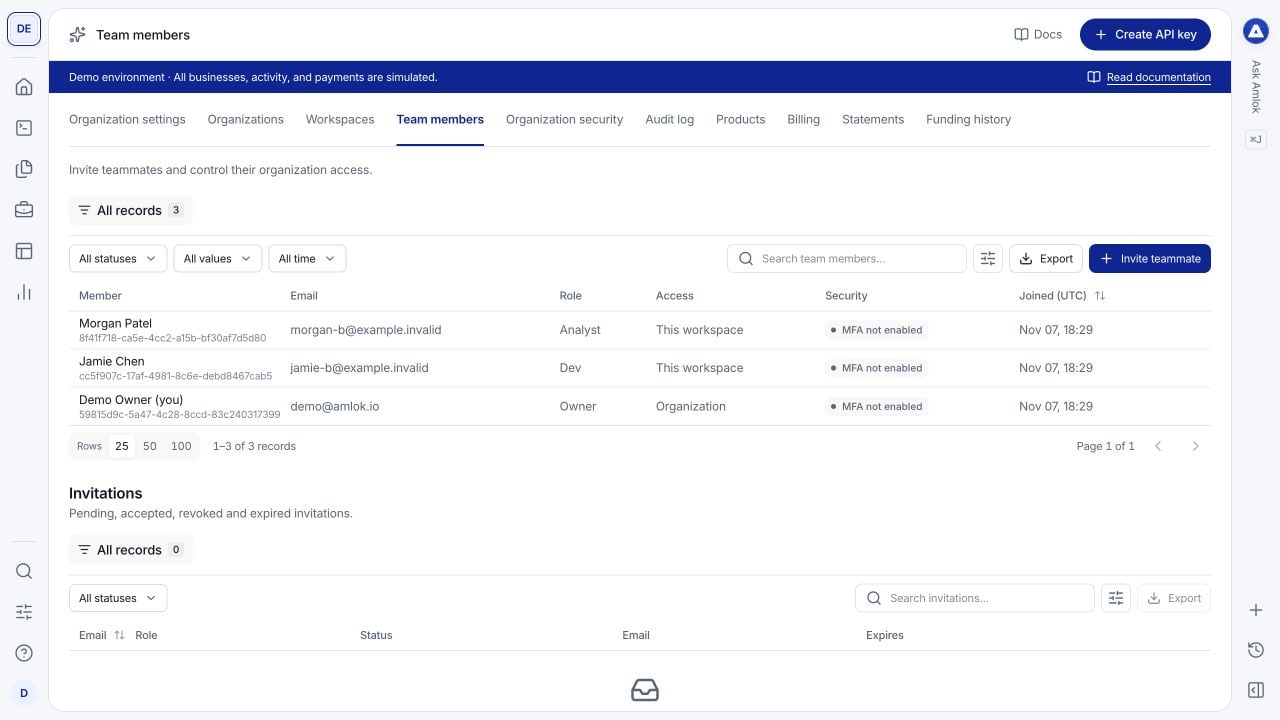
The Access column distinguishes organization membership from membership limited to this workspace.
Manage invitations
Inspect an invitation’s status, delivery information and expiration. Resend an invitation when needed; the new link replaces the previous one. Revoke a pending invitation if access is no longer required. If the recipient cannot find the email, confirm the address and ask them to check spam or filtering. An expired or revoked link should be replaced by a new invitation. See account access for acceptance issues.Change or remove access
Open the member’s record and use the available Change role or Remove action. Read the scope in the confirmation:- A workspace membership change applies here.
- An organization membership change affects access across that organization.